Files and editor
The tree uses Material Icon Theme icons and shows the git letter next to what changed (M modified, A/U new, D deleted). Files open in tabs, already editable, with colors, git marks in the gutter (green added, blue modified, red deleted), autocomplete and automatic reload if another tool changes the file and there are no unsaved changes here.
New agent tabs show only the agent name, without the project name; tabs that were already open keep their title until you close and reopen them. Agent and file tab titles use a compact size. The bar’s bottom border breaks under the active tab, which blends into the content.
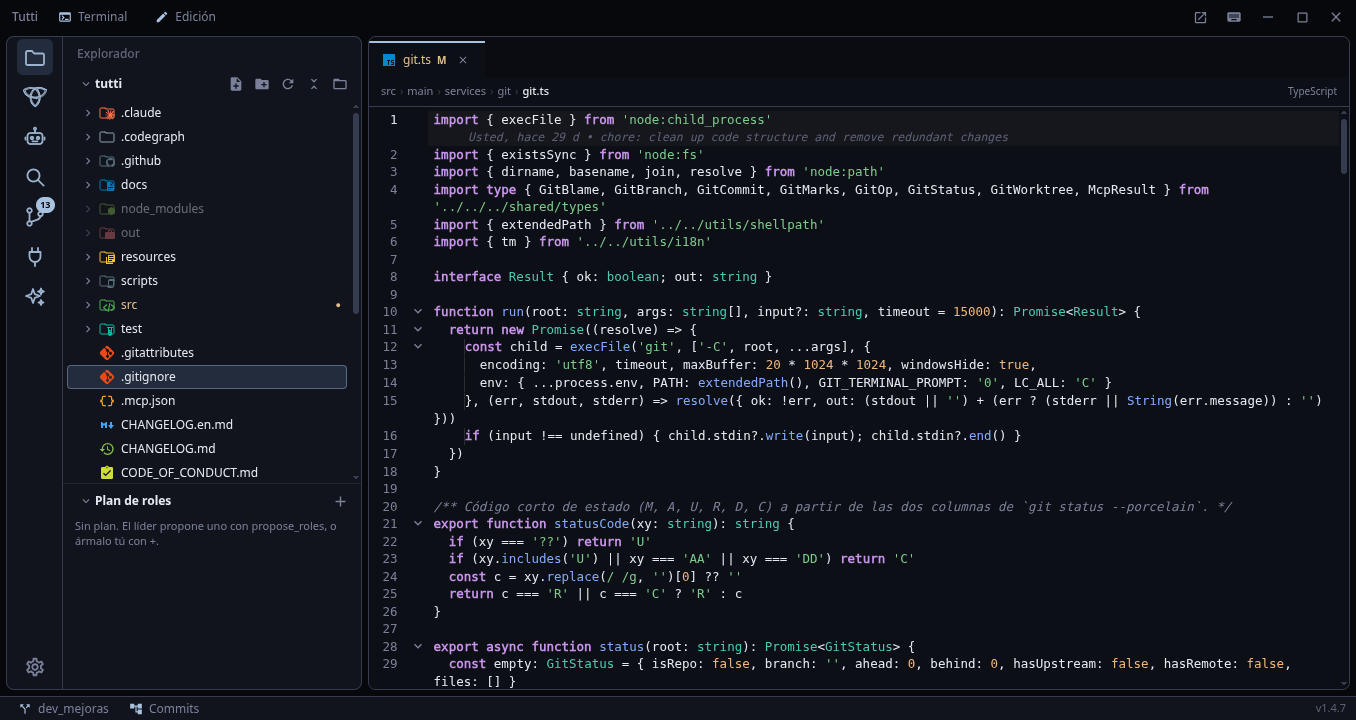
Editing
Ctrl+Ssaves;Ctrl+Wcloses the tab (it asks if there are unsaved changes).- The Editing permission in the title bar (or
Ctrl+Shift+L) makes files read-only. Files larger than 1 MB or not in UTF-8 always open read-only. - Send to agent: select code and press
Ctrl+L(or right click → Send selection to agent) to type the reference@file:12-30and the snippet in a code block into the active agent’s prompt, without sending it: you keep typing your request. With no selection it sends the cursor’s line; if the snippet is over 200 lines, only the reference goes. - Autocomplete with
Ctrl+Space;EnterorTabaccept andEsccloses the suggestion. - Syntax highlighting for JavaScript/TypeScript (and JSX), Python, SQL, JSON, CSS, HTML, Markdown, XML, Vue and more.
Markdown preview
For .md files, two buttons in the breadcrumb bar let you show the source beside the rendered preview—which updates as you type—or switch between source and a full-screen preview. Press the side-by-side preview button again to return to the regular editor. Tutti’s own preview does not render embedded HTML, such as badges or images written with HTML tags.
The tree
The header has the buttons New file, New folder, Refresh, Collapse all and Open another project. You can also click an empty space to create something at the root. The name is typed in the tree itself: Enter creates and Esc cancels. With the tree focused you can navigate with the arrows (→ opens, ← closes or goes up, Enter opens) and the marked row follows the mouse.
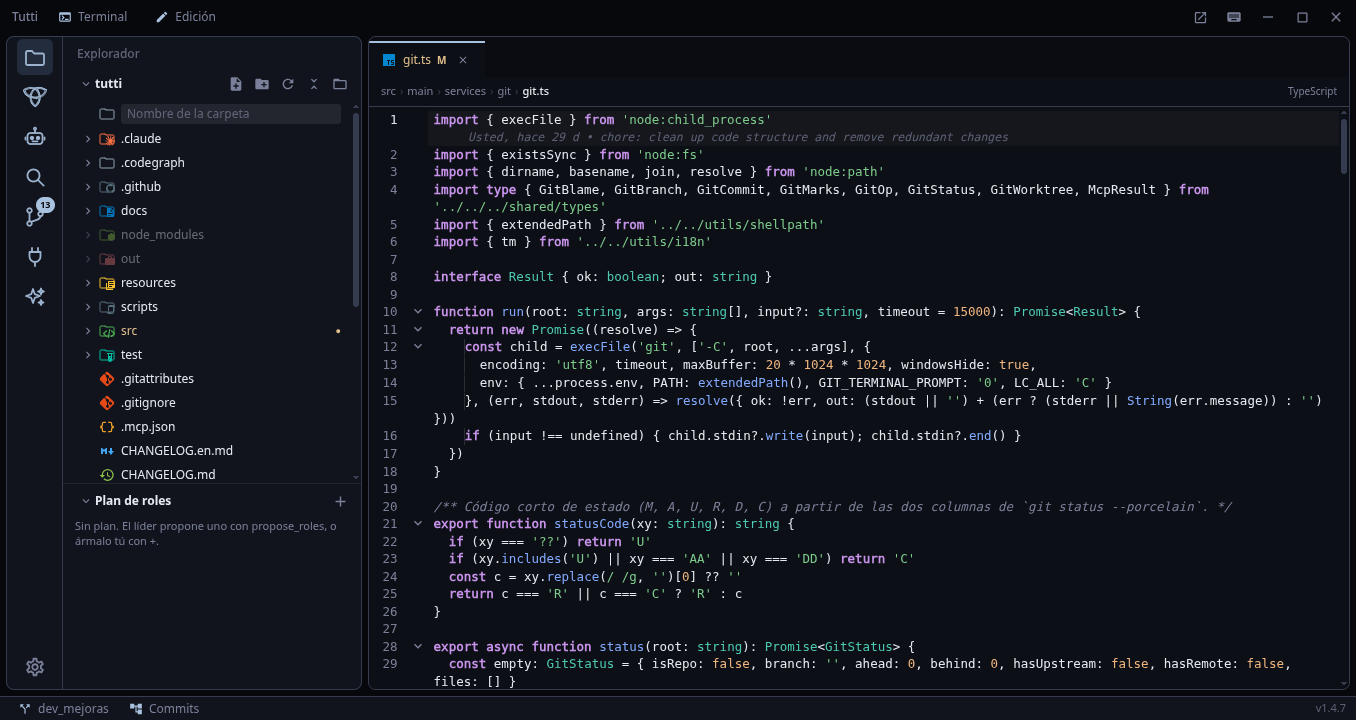
Right click (or the menu key)
| Action | What it does |
|---|---|
| Send to agent | Types the path into the active agent’s prompt (@path for the ones that understand it), without pressing Enter |
| New file / New folder | Creates them inside the folder; the file opens in the editor |
| Cut / Copy / Paste | Also with Ctrl+X, Ctrl+C and Ctrl+V. Pasting on a file does it in its folder; if the name already exists, the copy is named “name (2)” and nothing is overwritten. Cutting moves it and open tabs follow the file |
| Rename | Open tabs follow the rename |
| Copy path / relative path | To the clipboard |
| Delete | Asks for confirmation and sends it to the trash (recoverable) |
Selecting several and moving
Shift+↓/↑extends the selection;Shift+click selects a range andCtrl+click adds or removes a row. With several selected, right click offers sending them to the agent, copying their paths or deleting them (Deltoo).- Drag files or folders onto a folder (or onto the empty space, for the root) to move them. Tutti asks before moving, never overwrites anything that exists and does not let you put a folder inside itself; open tabs follow the file.
- Folders are tinted by what they hold: green if only new files, amber if any are modified, red if only deleted. Renaming happens on the row itself, with no dialog.
When an agent changes an open file
Tutti detects it and marks the old lines (red) and the new ones (green) in the editor; a panel at the top lists each chunk, with Accept and Undo per chunk and for all. What you accept stays as an unsaved local modification for you to review. While you decide, the file is read-only.
Languages
Highlighting for JavaScript/TypeScript, Python, SQL, JSON, CSS, HTML/XML, Markdown, Rust, Go, Java, C/C++, PHP, shell, YAML and TOML. Autocomplete and folding use Material icons; Ctrl + wheel (or Ctrl + + / -) changes the zoom.
Each project remembers its own
Switching project closes its agents, terminals and files (if there are unsaved changes, it asks first). Returning to a known project restores the sidebar tab and the files you had open.