Install
Tutti is a desktop app for Linux and Windows (macOS is coming later). It does not need administrator rights.
Linux
curl -fsSL https://github.com/cyansaju-sys/tutti/releases/latest/download/install.sh | bash
It downloads the AppImage of the latest release to ~/.local/share/tutti/, creates the tutti command in ~/.local/bin and the application menu entry. If libfuse2 is missing (on Arch, fuse2) it still works, it just opens more slowly.
| Command | What it does |
|---|---|
install.sh |
Installs or reinstalls the latest version |
install.sh --version 1.0.9 |
Installs a specific version |
install.sh --uninstall |
Removes it (your settings in ~/.config/tutti are kept) |
Variables: TUTTI_HOME (where the AppImage is stored) and TUTTI_REPO (user/repository).
Windows
Download Tutti-Setup-X.Y.Z.exe from the latest release and open it. It installs for your user, creates the shortcut and adds the tutti command to your PATH.
Note: The installer is not signed: Windows may show the SmartScreen warning. Click More info → Run anyway.
Opening from the terminal
The tutti command opens the app with a project, like code . in VS Code. The app opens on its own and the terminal stays free.
| Command | What it opens |
|---|---|
tutti |
The last project |
tutti . |
The current folder as the project |
tutti ~/path/to/project |
That folder as the project |
tutti src/main.ts |
The file’s git repository (or its folder, if it is not in one) and the file in the editor |
tutti --new-window |
An empty window, with no project |
Each tutti opens a new window, with its own agents. The folder becomes the last project and goes into the recent ones; if you had opened it before, its tab and files come back. If the path does not exist, the command says so and opens nothing.
On Linux the command is ~/.local/bin/tutti: install.sh creates it and, if you downloaded the AppImage by hand, the app itself does the first time you open it. The app keeps it up to date (for example, if you move the AppImage) and leaves alone a tutti that is not its own. On Windows the installer adds resources\bin (the folder with tutti.cmd) to your user’s PATH and removes it when uninstalling; terminals you open after installing see it.
Updates
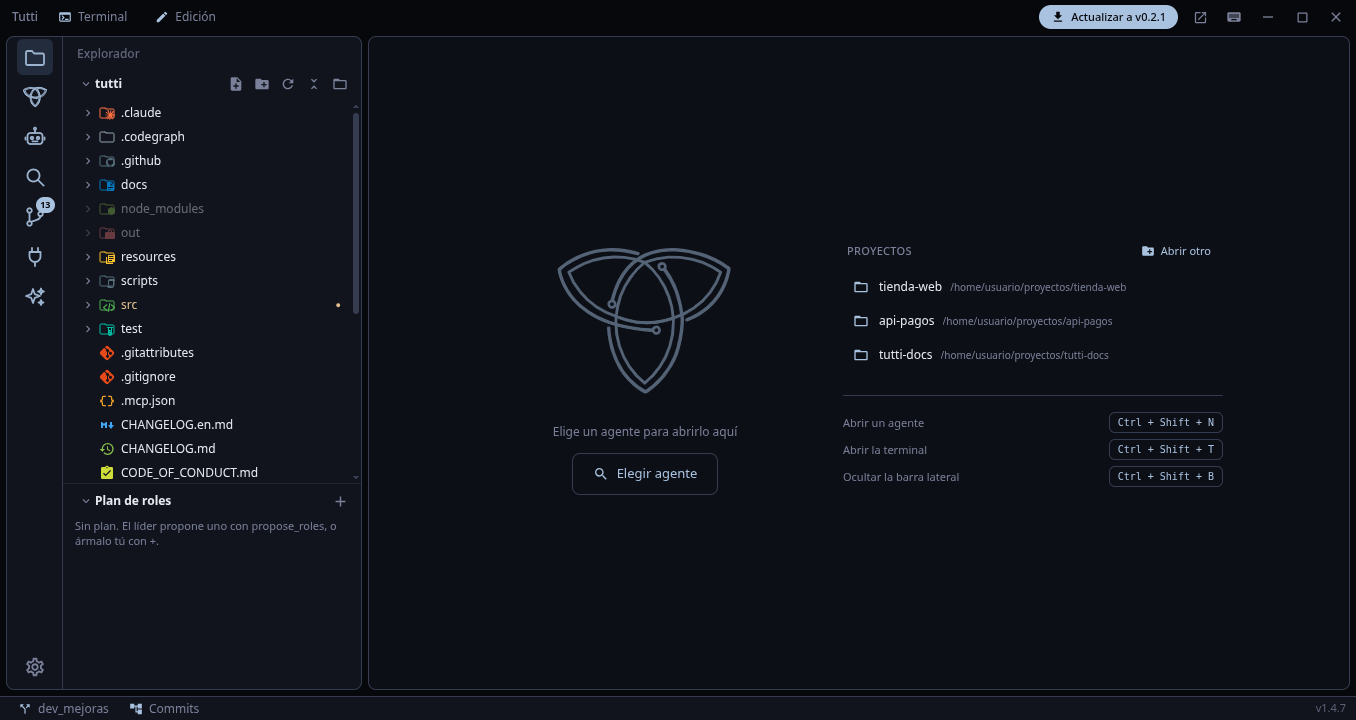
The app updates itself. When a new release comes out, the Update to vX.Y.Z button appears at the top right: clicking it downloads the version, verifies its hash and restarts to apply it. The first time you open the app after updating, a dialog tells you what is new (or what changed in every version you skipped); you can see it again by clicking the version number next to the app name.